Installation · Video guide
How to install RavandFX on MetaTrader 5
Installing RavandFX takes under two minutes: set your money management rules, copy the licence key from your email, put the EA on your MT5 chart and allow one web address. Watch the video, or follow the same five steps below.
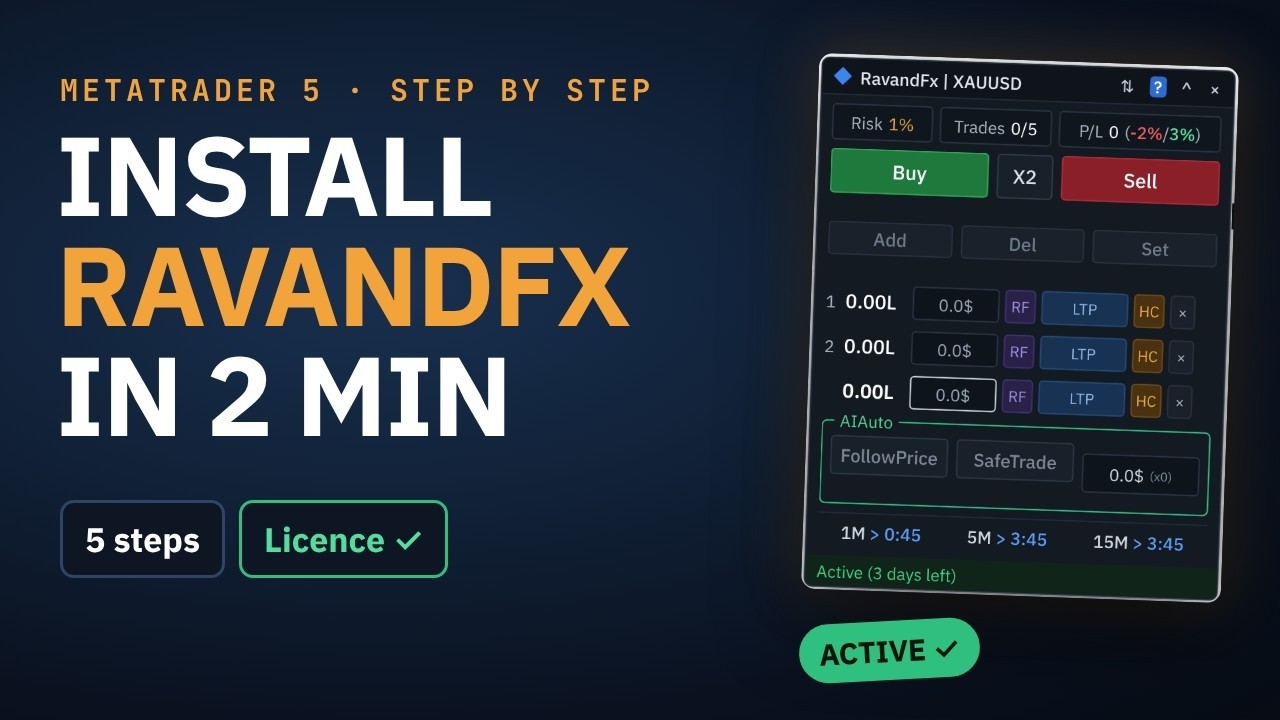
How to Install RavandFX on MT5 in Under 2 Minutes (Step by Step)
Before you start
You need:
- MetaTrader 5 for desktop on Windows, macOS, Linux or a VPS, with any broker. The MetaTrader mobile app can't run Expert Advisors.
- Your MT5 account number, demo or live. Your licence is linked to it.
- An email address for your licence key.
Step 1: Set your money management rules
- Open the RavandFX page and click Free trial, or choose a paid plan.
- Enter your email and your MT5 account number.
- Pick a starting point (Cautious, Balanced or Bold), then set your rules: risk per trade, trades per day, daily profit target and daily loss limit, the pause after every trade (10 or 15 minutes) and the stop-loss lock.
- Tick both boxes and confirm.
These rules are now locked into your licence. Making a rule stricter is allowed at any time and applies right away. Any other change is allowed once every 30 days and applies 24 hours after you ask, and you can cancel it until then. If you're not sure what numbers to choose, read the forex money management rules first.
Step 2: Copy your licence key from the email
Open the email titled "Your RavandFX licence key" and copy the key. It starts with RVD-.
Step 3: Sign in and download the EA
Go to my.ravandfx.com, sign in with your email and licence key, and click Download the EA. This page is also where you change your MT5 account, release a device or resend a lost key.
Step 4: Put the EA on your chart and paste the licence key
- In MetaTrader 5, open File › Open Data Folder, then MQL5 › Experts.
- Copy the downloaded RavandFX
.ex5file into the Experts folder. - In the Navigator, right-click Expert Advisors and choose Refresh.
- Drag RavandFX onto the chart of the symbol you trade, for example XAUUSD.
- Tick Allow Algo Trading, open the Inputs tab, paste your licence key into the licence key field and click OK.
These are the same steps you use to install any Expert Advisor in MT5. The only part that is specific to RavandFX is the licence key.
Step 5: Allow WebRequest
- Open Tools › Options › Expert Advisors.
- Tick Allow WebRequest for listed URL.
- Add
https://my.ravandfx.comand click OK.
The panel footer changes to Active, with the days left on your licence. You're done.
Check that your rules are live
The top row of the panel shows the rules you locked: risk per trade, trades used today, and your daily profit and loss against their limits. Press Buy or Sell, then Add: the entry, stop and target lines appear on the chart, and the lot size is already calculated from your risk.
Practise for a few days on a demo account first. Once the licence is active on a computer, you can also use RavandFX in the MT5 Strategy Tester on that computer to practise on historical data.
New MT5 account, computer or VPS
- New MetaTrader account: change the account number on my.ravandfx.com, up to 2 times every 30 days. Trial licences can't change account.
- New computer or VPS: open Device on my.ravandfx.com and click Release device, up to 3 times every 30 days, then attach the EA on the new MetaTrader and repeat steps 4 and 5.
Troubleshooting
| What you see | What to do |
|---|---|
| The panel says "connecting…" | Check that https://my.ravandfx.com is in Tools › Options › Expert Advisors › Allow WebRequest, then click ? › Refresh licence on the panel |
| RavandFX isn't in the Navigator | Make sure the .ex5 file is in MQL5 › Experts, then right-click Expert Advisors › Refresh |
| The licence is refused | The EA runs only on the MT5 account linked to your licence. Check the account number on my.ravandfx.com |
| Buttons don't open trades | Turn on Algo Trading in the MetaTrader toolbar and check that the EA's icon in the top-right corner of the chart isn't grey |
Still stuck? Email support@ravandfx.com with your licence key, your MT5 account number and a screenshot of the Experts tab.
Common questions
How do I install an EA in MetaTrader 5?
In MetaTrader 5, open File › Open Data Folder, go to MQL5 › Experts and copy the EA's .ex5 file there. In the Navigator, right-click Expert Advisors and choose Refresh, then drag the EA onto a chart and tick Allow Algo Trading. RavandFX also needs its web address allowed under Tools › Options › Expert Advisors, so it can check your licence.
Why does RavandFX need WebRequest?
The EA checks your licence with my.ravandfx.com. MetaTrader 5 blocks every web address an EA calls until you allow it, so you add https://my.ravandfx.com once under Tools › Options › Expert Advisors. RavandFX never needs your MetaTrader or broker password.
Can I install RavandFX on a Mac or a VPS?
Yes. RavandFX runs wherever the desktop version of MetaTrader 5 runs: Windows, macOS, Linux or a VPS. The steps are the same. The MetaTrader mobile app can't run Expert Advisors.
Can I use one licence on two computers?
A licence runs on one MetaTrader terminal at a time. To move it to another computer or VPS, open Device on my.ravandfx.com and release the current device, up to 3 times every 30 days, then attach the EA on the new MetaTrader.
Does the free trial need a different installation?
No. The 3-day trial uses the same EA file and the same steps, with every feature. A trial licence is linked to one MT5 account and can't be moved to another account.